
📖 Overview
Change your digiQC password any time — from the menu on the mobile app, or from your profile on the web. Enter your current password, set a new one, and confirm.
🧭 How to use
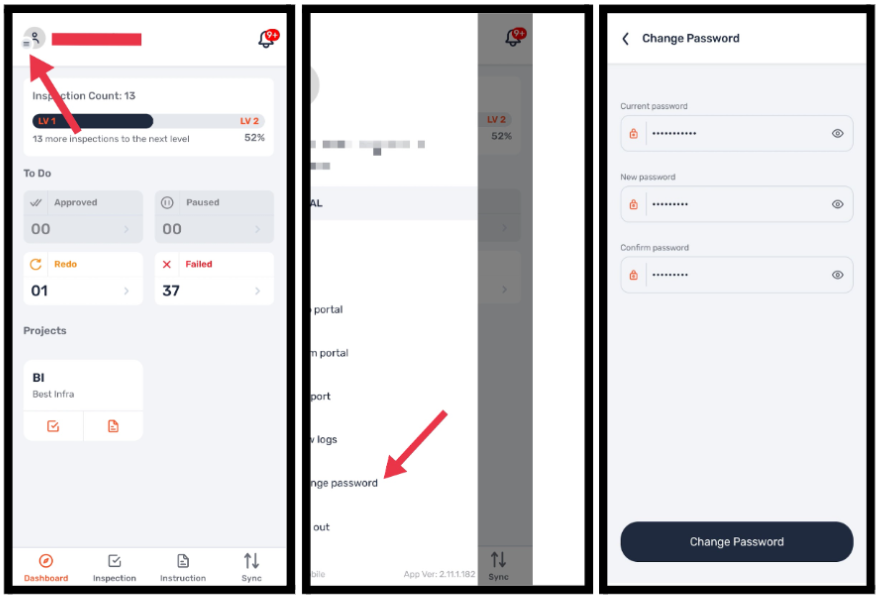
On mobile
Tap the three-line menu (☰) at the top left.
Tap Change Password.
Enter your current password, then enter and confirm your new password.
Tap Confirm.
On the web
Click the Profile button.
Click Change Password.
Enter your current password, then enter and confirm your new password.
Click Confirm.
❓ FAQ
1. Where do I find Change Password?
On mobile, open the three-line menu (☰) at the top left; on the web, click your Profile button. Then choose Change Password.
2. I forgot my current password — how do I change it?
Change Password needs your current password. If you don't know it, use Forgot Password on the login screen to reset it via an email link instead.
3. My new password isn't being accepted — why?
Make sure your new password and the confirmation match, and follow any requirements shown on screen.
⚠️ Good to know
You can change your password on both the mobile app and the web.
You need your current password to change it; if you've forgotten it, use Forgot Password instead.