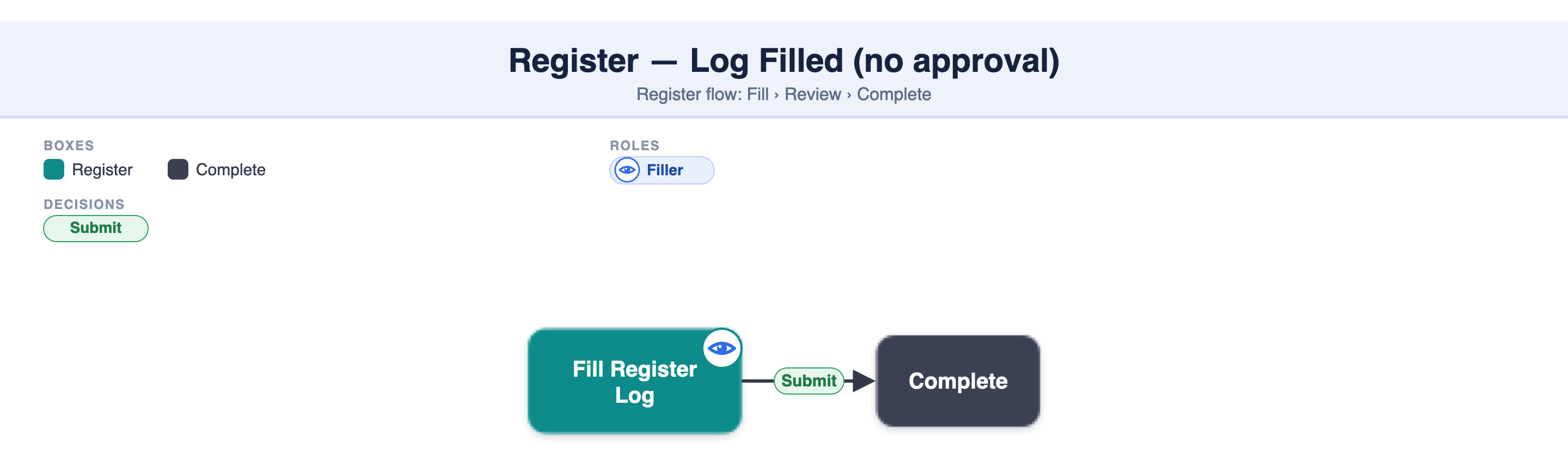
Once a register is Live, an Inspector or Project Admin can fill it. You create a Log (one submission for one activity or session), fill the Details section once, and add one or more Table rows (Entries). Every log is saved with your name, team, and a timestamp.
Select a Live register — e.g. Concrete Pour Register.
Tap Add to create a new Log. One Log = one submission for one activity/session.
Fill the Details section (filled once) — for example:
- Vendor: ACC Concrete - Grade: M30 - Pour Location: Nomenclature → Tower A → Level 3 → Slab, Variable: "Section B North" - Pour Date: 18-May-2026 - Supervisor: Ravi Patel - Linked EQC: RCC Slab Inspection — Tower A Level 3
Add Table rows (Entries) — one row per batch or activity. Calculation fields (e.g. Total Qty) compute automatically:
Batch No. | Qty (cum) | Vehicle No. | Cube No. | Slump (mm) |
|---|---|---|---|---|
001 | 6 | MH-12-AB-1234 | A-101 | 90 |
002 | 6 | GJ-05-CD-5678 | A-102 | 85 |
003 | 4 | GJ-05-EF-9012 | A-103 | 95 |
Total Qty (Calculation) = 16 cum, computed automatically.
Save the log. digiQC validates the mandatory fields, data types, and formulas, then saves it with your name, team, and timestamp.
- If some mandatory fields aren't filled, you can save the log as a Draft (status Draft) and finish it later. - If no approval is configured, the log has no status, is available immediately for view and export, and can be changed at any time by an Inspector or Project Admin.
A register log saves automatically once all mandatory fields are filled — both the detail mandatory fields and the table mandatory fields. Auto-save works when you have a working internet connection.
Sometimes a few mandatory details aren't available yet. In that case use Save as Draft so your work isn't lost.
The log shows a Draft status — on both the register log list and the register log detail page.
Once the missing details become available and are filled in, auto-save takes over and the log is saved normally.
If you refresh the page or click the back button, a warning pop-up appears — from there too you can Save as Draft.
A draft register log can be seen by users of the same team or users with project access — and any of them can also complete the draft, so work never gets stuck with one person.
A Log is one submission (Details filled once + Table rows). An Entry is a single row in the Table section.
Yes — if the mandatory fields aren't all filled, save it as a Draft and complete it later.
No — they compute automatically from the numeric fields (e.g. Total Qty = SUM of Qty).
Only if approval is configured. Without approval, a saved log has no status and is available straight away.
If the register has no approval, yes — a saved log can be changed at any time by an Inspector or Project Admin. If approval is configured, editing follows the approval process (see 2.4.4 Register approvals).
Yes — multiple logs can be created by multiple team members, and each log can hold many entries.
Team Access users see only their own team's logs; Project Access users see all teams' logs.
A warning pop-up appears, and you can Save as Draft from there so nothing is lost.
One Log = Details filled once + one or more Table rows.
An incomplete log (missing mandatory fields) can be saved as a Draft.
No approval configured = no status; the log is available immediately and can be edited anytime by an Inspector or Project Admin.
Calculation fields auto-compute — no manual entry.
Visibility depends on Team vs Project access.
2.4.2 Create & publish a register template
2.4.4 Register approvals — seek approval, redo & levels
2.4.5 View & export register data
2.4.6 Grouping in a register
When a register has no approval, you fill the register log and submit it — that completes the entry.