
📖 Overview
When you're added to digiQC, you get a welcome email to set your own password. You then log in with your email ID and that password, and verify your mobile number once with an OTP.
🧭 How to use
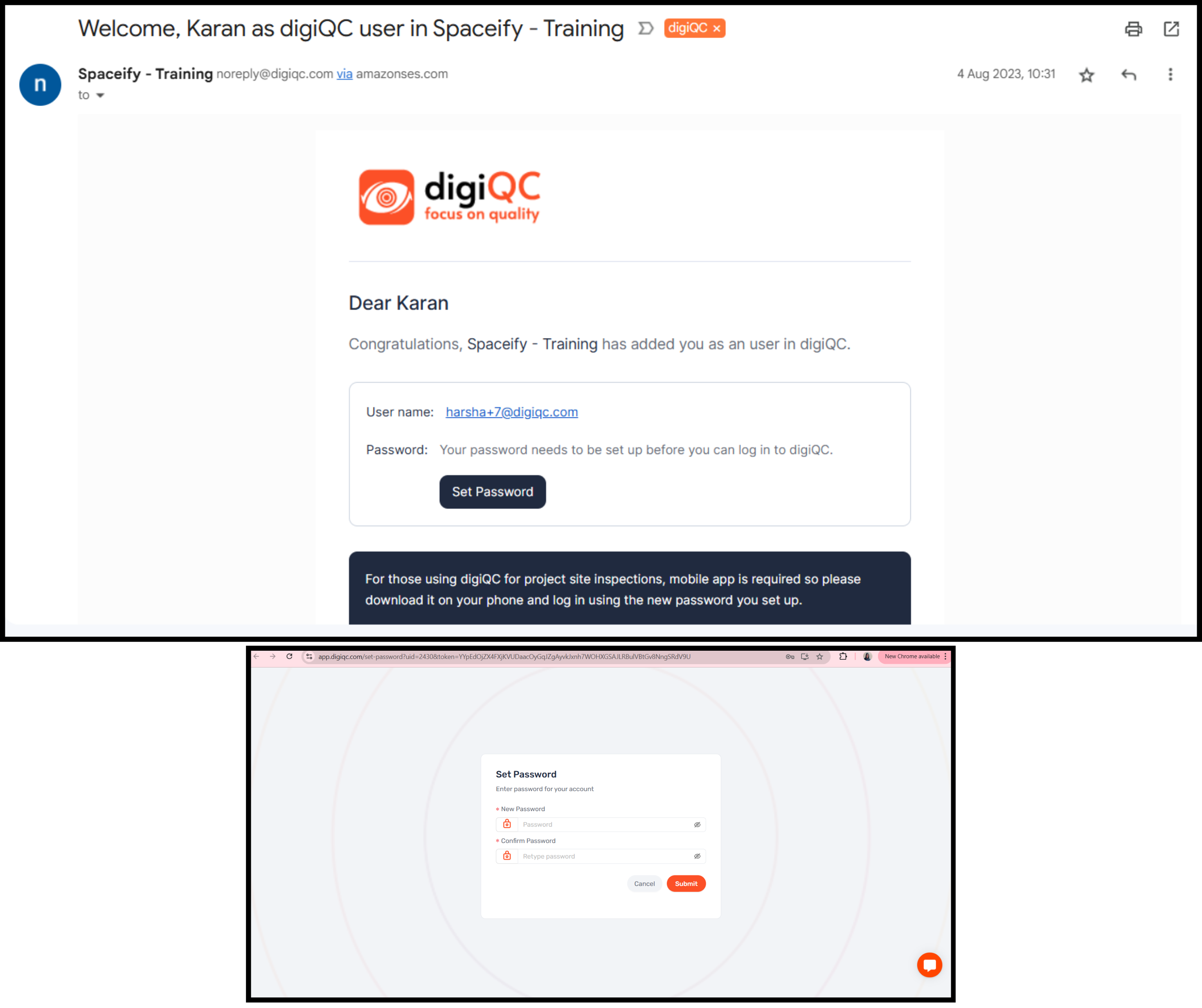
You'll get a welcome email when you're added to digiQC (see the screenshot below).
Click Set Password, set and confirm your password, then tap Submit.
Log in to digiQC on the web app or the mobile app using your email ID and the password you set.
On your first login you'll be asked to verify your mobile number with an OTP.
❓ FAQ
1. I didn't get the welcome email — what do I do?
First check your spam or junk folder. If it still hasn't arrived, use Forgot Password on the login screen to get a fresh email link and set your password.
2. The set-password link isn't working or has expired — what now?
Use Forgot Password on the login screen to get a new email link, then set your password from that.
3. Do I log in on the website or the mobile app the first time?
Either works — you can log in on both the web app and the mobile app using your email ID and the password you set.
4. Why am I asked to verify my mobile number with an OTP?
The OTP links your email account with your mobile number. It also lets digiQC send you WhatsApp notifications in some cases.
5. I'm not receiving the OTP — what should I do?
Wait a few seconds — a Resend OTP option becomes active so you can request a new code. Check that your mobile number and network are correct; if it still doesn't arrive, contact digiQC support.
⚠️ Good to know
You can log in on the web app or the mobile app — both work for your first login.
Mobile-number (OTP) verification links your number to your account and enables WhatsApp updates in some cases.